Cancelling Microsoft 365? The Checklist to Keep Your Files, Email and Editing Access
By Adam Smart, Ecokeys Support Engineer — Last updated 25 August 2026
First, the bit that actually matters: cancelling Microsoft 365 does not make your Word documents or family photos vanish. Nobody's coming for your files. What changes is quieter and easier to miss — your access to certain benefits winds down, not your ownership of anything you've created.
That said, there are three things genuinely worth checking before the subscription ends: where your files actually live, how much OneDrive storage you're using, and what you'll use to edit Word, Excel and PowerPoint files afterwards. Fifteen minutes now saves you an unpleasant "wait, why won't this let me save?" moment later.
This guide covers Microsoft 365 Personal and Family. If your account came through an employer, school or business, different rules may apply and it's worth checking with them directly.
What actually happens, in plain terms
Your documents stay yours regardless of what they were created in. What changes is your access to the subscription benefits. The desktop versions of Word, Excel and PowerPoint lose their normal full functionality once the subscription is no longer licensed. You can still open and print existing documents, but editing, saving changes and creating new documents in the subscription desktop apps becomes restricted.
Your additional OneDrive storage is affected too. Microsoft 365 Personal normally includes 1TB of cloud storage, while Microsoft 365 Family provides 1TB for each person using the plan. When the subscription ends, each account returns to Microsoft's free storage allowances.
Worth sitting with for a second: owning a Word document and having a licensed copy of Word to edit it are two separate things. The document is entirely yours. You just need suitable software if you want to keep changing it.
Before you cancel: work out where your files actually are
Here's a genuinely common trap. OneDrive shows cloud files sitting right alongside your local ones in File Explorer, which makes everything look like it's safely on your PC even when it isn't. Most of the time that's a convenience. Right before cancelling a subscription is exactly when it's worth double-checking.
A properly local file lives on your computer's own drive — it'll stay put with or without an internet connection, and Microsoft 365 ending won't touch it. That doesn't make it immortal, mind: a failed hard drive, an accidental delete, or a cup of tea meeting a keyboard at speed can still take it out. Anything irreplaceable deserves a backup regardless of what you do with your subscription.
OneDrive files are a different story. Files On-Demand can show a file in File Explorer without the whole thing actually being downloaded to your PC. You'll normally see a blue cloud icon next to online-only files, while files kept on the device show a green status icon.
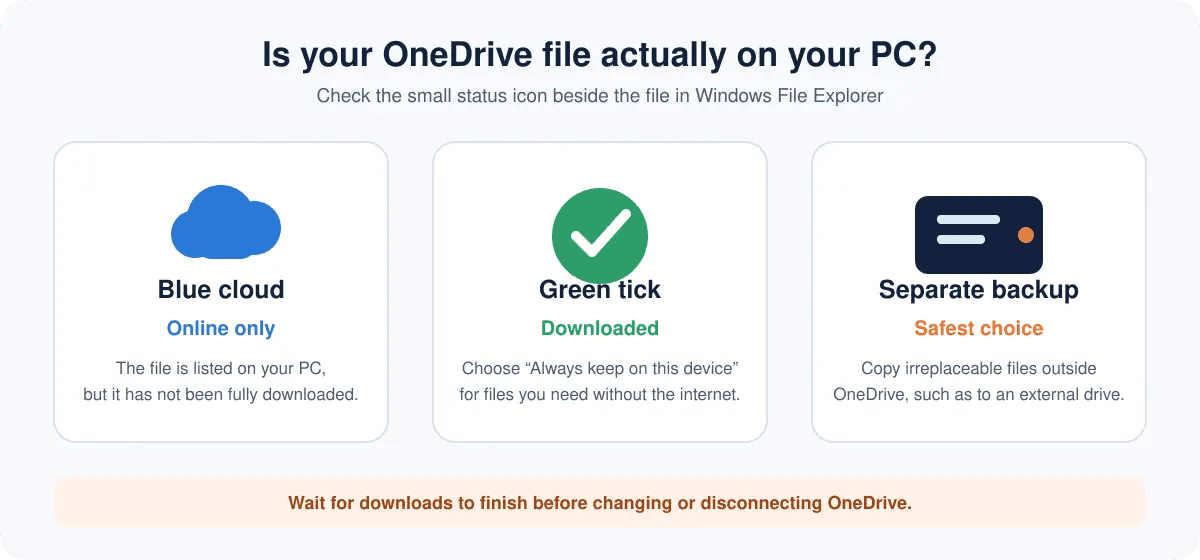
Right-click anything important and choose Always keep on this device, then give OneDrive enough time to finish downloading it before you change any account settings. For anything you genuinely can't afford to lose, go one step further and copy it somewhere outside the OneDrive folder entirely — an external drive, for example.
Being synced to OneDrive isn't quite the same thing as having a separate backup.
Seven things worth checking before you cancel
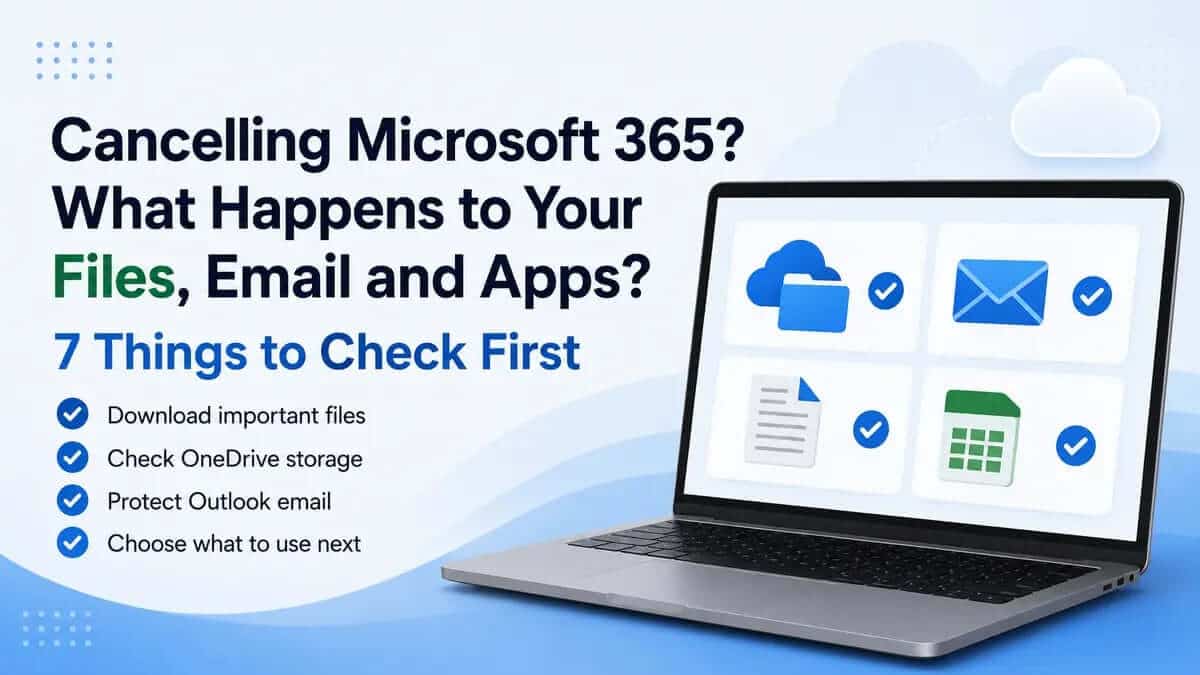
1. Check your actual expiry date. Sign in and open Services & Subscriptions in your Microsoft account. This tells you exactly when things end. If your only goal is stopping the next payment, turning off recurring billing is usually the cleanest route; your subscription benefits continue until the expiry date rather than disappearing the moment recurring billing is switched off. If the subscription was bought through Apple, Google Play or another retailer, you may need to manage it through them instead.
2. Check your real OneDrive usage. Don't assume you're comfortably under 5GB — phone photo backups have a habit of eating storage far faster than a folder of Word documents ever would. Check the storage section of your Microsoft account, and if you're over the free allowance, decide whether you're reducing what's stored, moving it elsewhere, buying separate storage, or keeping a subscription that covers it.
3. Make important files available offline. Do the same blue-cloud-icon check described above. Right-click important files, choose Always keep on this device, and give OneDrive time to actually download them.
4. Back up anything irreplaceable, separately. Worth doing whether you cancel or not, honestly.
5. Work out how you actually use Outlook. Outlook.com in a web browser, the installed Outlook desktop application, and a Gmail or other email address you've simply added to Outlook are different things with different outcomes. Cancelling Microsoft 365 doesn't cancel an email account belonging to Gmail or another provider; it affects your licensed use of the Microsoft 365 desktop Outlook application.
6. If it's a Family plan, actually talk to everyone sharing it. Each person has their own account, files and storage — cancelling affects all of them, not just whoever's paying the bill. A surprise "hey, check your cloud storage" family group chat is a small kindness that saves everyone a headache later. Admittedly not the most thrilling text to send.
7. Decide what replaces it. You don't automatically need to spend more money. It depends entirely on what you actually use day to day. More on the options below.
Can I still open and use Word, Excel and PowerPoint afterwards?
You can still open and print existing documents when the Microsoft 365 desktop applications are in their restricted or unlicensed state. What you lose is their normal editing functionality — editing and saving changes to existing files or creating new ones in the desktop apps becomes restricted.
Nothing about the ownership of your documents has changed; it's the software licence that has.
If your needs are genuinely light, Microsoft's free browser versions of Word, Excel and PowerPoint at Microsoft365.com cover a fair amount of everyday ground. They don't have the full desktop feature set, but they're often enough for letters, straightforward spreadsheets and similar everyday jobs.
What actually happens to OneDrive?
Once the subscription ends, your account returns to Microsoft's free storage allowances. That includes 5GB of Microsoft cloud storage used by OneDrive files and Outlook.com attachments, alongside the separate Outlook.com mailbox storage allowance.
If you're over your Microsoft cloud-storage allowance, you won't be able to upload, edit or sync new OneDrive files and existing files become read-only. Outlook.com can also stop sending and receiving mail while the account remains over its storage allowance.
Microsoft also warns that a OneDrive account can become frozen after remaining over its OneDrive storage limit for more than three months. If the account remains over its limit for six months, Microsoft says it may delete the OneDrive and all files within it.
None of this means your OneDrive is suddenly wiped the day the subscription ends. But "eventually, if ignored" is still worth taking seriously rather than filing under future-you's problem.
Getting under the free allowance, or moving what matters somewhere else, before your subscription expires is by far the least stressful way to deal with it.
What happens to Outlook specifically?
"Outlook" quietly means more than one thing, and that's where a lot of the confusion starts.
Outlook.com is Microsoft's web-based email service. It has its own mailbox storage allowance, separate from the 5GB Microsoft cloud-storage allowance used by OneDrive and Outlook.com attachments. However, exceeding the Microsoft cloud-storage allowance can still affect Outlook.com's ability to send and receive messages.
Desktop Outlook is the Outlook application installed on your computer. If you're using the Microsoft 365 subscription version, it loses normal licensed functionality when the subscription ends, just like the other desktop Office applications.
If you've simply added a Gmail, Yahoo or another provider's email address to Outlook for convenience, cancelling Microsoft 365 doesn't cancel that email account. It still belongs to its original provider — you would simply need to access it another way if you no longer have full use of desktop Outlook.
This guide doesn't cover employer-managed Exchange mailboxes, which work under different arrangements.
If it's a Family plan: everyone needs to check their own account
Cancelling affects every person sharing the plan, not only whoever's name is on the payment.
Each person's files remain their files. What changes is their Microsoft 365 subscription access, including the additional cloud storage and full use of the subscription desktop applications.
That's exactly why it's worth everyone checking their own storage rather than assuming the subscription owner has it covered for them.
Turning off recurring billing doesn't cut everyone off immediately either. The subscription continues until the expiry date shown in the owner's Microsoft account.
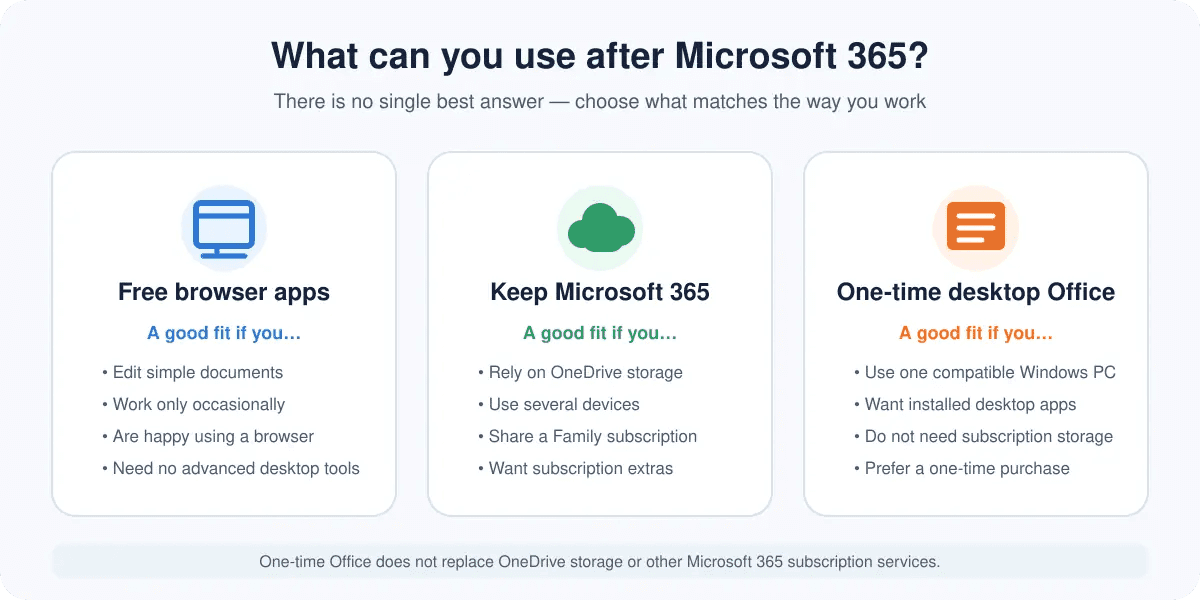
What can I use instead of Microsoft 365?
There's no single right answer here — it genuinely depends on how you actually use Office day to day.
Microsoft's free browser apps
If your documents are fairly simple, you're happy working in a browser, and you can live within Microsoft's free storage allowance or store your files elsewhere, the free browser versions of Word, Excel and PowerPoint are worth trying first.
They cost nothing and cover more everyday tasks than many people expect.
Keep Microsoft 365
Keeping Microsoft 365 still makes sense if you're using Office across several devices, relying heavily on the included OneDrive storage, sharing a Family subscription, or you value the continuing updates and other services included with the subscription.
Cancelling isn't automatically the money-saving choice if you'd immediately need to replace several things Microsoft 365 currently bundles together.
Buy a one-time desktop version of Office
A one-time desktop Office purchase can suit someone with one main Windows PC who wants the familiar installed applications without an ongoing subscription and doesn't specifically need Microsoft 365's cloud storage or multi-device benefits.
If you're considering that route, you can compare Microsoft Office licences for Windows PCs across the available Office generations before deciding which version is right for you.
If Office 2024 is the version you want, you can then compare the available Microsoft Office 2024 editions before choosing a specific licence.
For customers who need the Professional Plus application set, Office 2024 Professional Plus from EcoKeys is a one-time purchase for one compatible Windows PC and includes Word, Excel, PowerPoint, Outlook, Access and OneNote 2024.
It's equally important to be clear about what it doesn't include. It doesn't provide Microsoft 365 subscription services, additional OneDrive storage, Teams, Project, Visio or future major Office releases.
Windows 11 is recommended. If you're planning to use Office 2024 on a Windows 10 computer, check compatibility before purchasing.
In other words, it can replace the desktop Office applications for the right user, but it doesn't replace everything included with Microsoft 365.
If you're also considering an older perpetual release, our guide to Office 2024 vs Office 2021 explains the differences, including their remaining Microsoft support periods.
Is a one-time purchase actually cheaper?
Sometimes — but only if it replaces what you actually use, not just whichever number looks smaller on the page.
As of 19 August 2026, Microsoft's UK pricing is:
| Microsoft product | Current UK price | 3-year cost | 5-year cost |
|---|---|---|---|
| Microsoft 365 Personal | £84.99/year | £254.97 | £424.95 |
| Microsoft 365 Family | £104.99/year | £314.97 | £524.95 |
| Office Home 2024 | £119.99 one-time | £119.99* | £119.99* |
*Assuming the same Office Home 2024 version continues to meet your needs and no later major Office version is purchased. Microsoft 365 subscription prices can change, so the three- and five-year figures above are simple projections based on the price checked on 19 August 2026 rather than a guarantee of future pricing.
Office Home 2024 isn't a like-for-like replacement for everything Microsoft 365 includes. It doesn't include equivalent OneDrive storage, multi-device subscription use or Family sharing.
So the useful question isn't simply, "Which number is lower?"
It's: "Which of the things I'm currently paying for will I actually still need afterwards?"
Which option actually fits you?
If you only write the occasional letter or edit a straightforward spreadsheet:
Start with Microsoft's free browser apps. There's no reason to pay for more than you'll use.
If your household uses several devices and stores a lot in OneDrive:
Keeping Microsoft 365 Family may still be the more practical option despite the annual cost.
If you rely on the desktop applications, cloud storage and Microsoft 365 subscription features:
Keeping Microsoft 365 Personal — or comparing Microsoft's other current plans — probably makes more sense than replacing individual parts separately.
If you mainly use one Windows PC, want the installed desktop Office applications and don't need the Microsoft 365 subscription storage:
That's where a one-time Office purchase becomes worth considering.
Moving from Microsoft 365 to a one-time Office licence: the sensible order
Don't rush the actual software change until your files are genuinely safe.
A sensible order is:
- Check your exact Microsoft 365 expiry date.
- Review how much OneDrive storage you're using.
- Make sure important cloud-only files are downloaded.
- Back up anything irreplaceable somewhere separate.
- Check with anyone else affected if you're using Microsoft 365 Family.
- Confirm that the one-time Office edition you're considering actually includes the applications you need.
- Then follow the installation instructions for your replacement Office software.
Changing the Office software installed on your PC shouldn't remove your existing Word, Excel or PowerPoint documents — but backing up first costs you a few minutes and can save you a much worse afternoon if anything does go sideways.
Quick questions
Will I lose my Word documents if I cancel Microsoft 365?
No. Files stored on your PC aren't deleted simply because your Microsoft 365 subscription ends. Files stored in OneDrive need more attention if your account will be over the free storage allowance after the subscription expires.
Can I still open Word and Excel files afterwards?
Yes. The Microsoft 365 desktop applications can still open and print existing documents in their restricted state, but normal editing, saving and creation functionality is limited once the subscription is no longer licensed. Microsoft's free browser apps or another compatible Office edition can provide an alternative way to edit them.
Do I need to download everything from OneDrive before cancelling?
Not necessarily. If you're comfortably within the free storage allowance and intend to keep using OneDrive, you don't need to remove everything simply because you're cancelling Microsoft 365.
You should, however, make sure anything important is available locally and keep a separate backup of files you genuinely can't afford to lose.
What happens if I'm over the free OneDrive allowance?
OneDrive uploading, editing and syncing are restricted and existing files become read-only while the account remains over its storage allowance. Outlook.com can also be affected. Microsoft warns that OneDrive can become frozen after remaining over the limit for more than three months, and OneDrive data may ultimately be deleted if the account remains over its limit for six months.
What happens to everyone else on a Microsoft 365 Family plan?
They keep ownership of their files, but they also lose the additional storage and Microsoft 365 subscription benefits provided through the Family plan when it expires. Each family member should check their own OneDrive storage before the subscription ends.
Can I stop paying for Microsoft 365 and still use Word?
Yes, depending on what you need. Microsoft's free browser version of Word may be enough for basic use. If you want the installed desktop application with normal editing functionality, you'll need a suitable licensed Office product.
Can I replace Microsoft 365 with Office 2024?
For some people, yes. If your main requirement is the installed Office desktop applications on one compatible Windows PC, a one-time Office 2024 purchase may be a suitable alternative.
It isn't a complete replacement for Microsoft 365's subscription services, cloud storage, multi-device benefits or Family sharing, so check which features you actually use before deciding.
Does Office 2024 Professional Plus include OneDrive storage?
No. Office 2024 Professional Plus provides the included desktop Office applications for one compatible Windows PC. It doesn't include a Microsoft 365 subscription or additional OneDrive storage.
Sources and information checked
The Microsoft 365 subscription, storage and pricing information in this guide was checked against Microsoft's current UK pricing and Microsoft Support information on 19 August 2026.
- Microsoft UK — Compare Microsoft 365 plans and pricing
- Microsoft Support — Cancel a Microsoft 365 subscription
- Microsoft Support — OneDrive storage and over-quota guidance
- EcoKeys — Office 2024 Professional Plus for Windows
Microsoft services, prices and storage policies can change. If you're reading this guide at a later date and your account shows different information, follow the current details shown by Microsoft for your subscription.