How to Install and Activate Microsoft Project Professional 2024
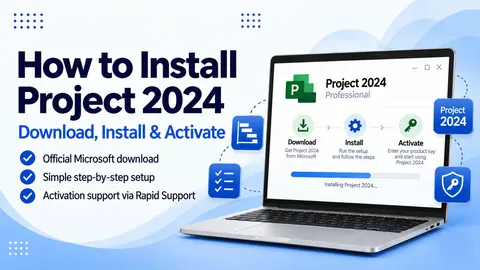
This guide explains how to download, install and activate Microsoft Project Professional 2024 on a Windows 10 or Windows 11 PC.
The installation is straightforward and normally takes around 10 to 30 minutes depending on your computer and internet connection.
Before You Install Microsoft Project Professional 2024
You will need:
- A reliable broadband connection to download and activate Microsoft Project.
- A genuine 25-character Microsoft Project Professional 2024 product key.
- A compatible Windows 10 or Windows 11 computer.
- Administrator permission on the PC to install software.
Already have Microsoft Office installed? Project and Office installed on the same computer normally need to use compatible installation technology and matching 32-bit or 64-bit architecture. If setup reports an Office compatibility error, do not immediately uninstall your existing working Office installation.
Step 1: Download Microsoft Project Professional 2024
Click the link below to download Microsoft Project Professional 2024 directly from Microsoft’s servers:
Download Microsoft Project Professional 2024
The downloaded file is:
ProjectPro2024Retail.imgBrowser download warning: Chrome or Microsoft Edge may occasionally ask you to confirm that you want to keep the IMG file. The download above is hosted on Microsoft’s officecdn.microsoft.com servers. If prompted, confirm that you want to keep the file.
The download should begin automatically and will normally be saved in your Windows Downloads folder.

Step 2: Locate the Downloaded IMG File
When the download has finished, open your Downloads folder and locate:
ProjectPro2024Retail.imgThe file will normally be located at:
C:\Users\<YourUsername>\Downloads<YourUsername> represents the name of your Windows user account.
Cannot find the download? Open your browser’s download history and select the folder icon beside the Project download to open the location where it was saved.
Step 3: Open the Project IMG File
Double-click ProjectPro2024Retail.img.
Windows should automatically mount the IMG file as a virtual drive and display the Microsoft Project installation files.
If double-clicking the file does not open it:
- Right-click ProjectPro2024Retail.img.
- Select Mount.
- Open the newly mounted drive in File Explorer.

Step 4: Start the Microsoft Project Installation
Inside the mounted Project drive, locate the Setup application.
Double-click Setup to begin installing Microsoft Project Professional 2024.
If Windows asks whether you want to allow the application to make changes to your computer, select Yes.

Microsoft Project Professional 2024 will now install.
Installation normally takes around 10 to 30 minutes, although the exact time will depend on your computer and internet connection.
Important: Do not restart or switch off your computer while Microsoft Project is installing.
Step 5: Complete the Installation
When installation has finished, Microsoft will display the completion screen.
Select Close.

We recommend restarting the computer before opening Microsoft Project for the first time.
Step 6: Open Microsoft Project Professional 2024
- Restart your computer.
- Open the Windows Start menu or Search.
- Type Project.
- Select Microsoft Project from the search results.
Microsoft Project Professional 2024 will now open.
After a few seconds, the product activation screen should appear.

Step 7: Activate Microsoft Project Professional 2024
Locate the 25-character Microsoft Project Professional 2024 product key supplied with your EcoKeys order.
A Microsoft product key uses the following format:
XXXXX-XXXXX-XXXXX-XXXXX-XXXXX- Copy your Microsoft Project Professional 2024 product key.
- Paste it into the Enter an Office product key field.
- Follow the on-screen instructions.
- Select Activate online if this option appears.
- Wait for Microsoft to confirm that activation has completed.
Entering the key: Make sure the product key is entered exactly as supplied. If you copy and paste it, avoid including any spaces before or after the key.
Once Microsoft confirms activation, Project Professional 2024 is installed, activated and ready to use.
How to Check That Microsoft Project 2024 Is Activated
If you want to confirm the activation status:
- Open Microsoft Project.
- Select File.
- Select Account.
- Look under Product Information.
The Product Information section should show that Microsoft Project is activated.
Microsoft Project 2024 Installation Problems
Most installations complete without any problems. If setup fails, check the following before contacting support.
IMG file will not open
Right-click ProjectPro2024Retail.img and select Mount. Then open the mounted drive and run Setup.
32-bit or 64-bit error
If Microsoft Office is already installed, Project normally needs to use the same 32-bit or 64-bit architecture as your existing Office installation.
Project cannot install with Office
Some combinations of Microsoft Office and Project installation technologies cannot be installed together. Do not remove a working Office installation until you have identified the actual compatibility issue.
Product key is rejected
Check that Microsoft Project Professional 2024 has been installed and that the complete 25-character Project product key has been entered correctly.
Project Installed but the Activation Screen Does Not Appear
If Microsoft Project opens without showing the product-key screen, select File > Account.
Depending on the current activation state, you may see an option to activate the product or change the product key.
Follow the activation method supplied with your EcoKeys order.
Need Help Installing or Activating Project 2024?
If you purchased Microsoft Project Professional 2024 from EcoKeys and have difficulty downloading, installing or activating the software, please use the EcoKeys Support Portal:
Please include the complete error message. A screenshot or clear photo normally provides more useful troubleshooting information than sending only an error code.
Microsoft Project Professional 2024 Installation Summary
Download
Download the Microsoft Project Professional 2024 IMG file.
Mount
Open or mount ProjectPro2024Retail.img.
Install
Open the mounted drive and run Setup.
Restart
Restart Windows after installation has completed.
Activate
Open Project and enter your 25-character product key.