Why Can't I Remote Desktop Into My Windows 11 PC? | Ecokeys
Why Can't I Remote Desktop Into My Own PC? (Windows 11 Home's Hidden Limit)
By Adam Smart, Ecokeys Support Engineer — 25 July 2026
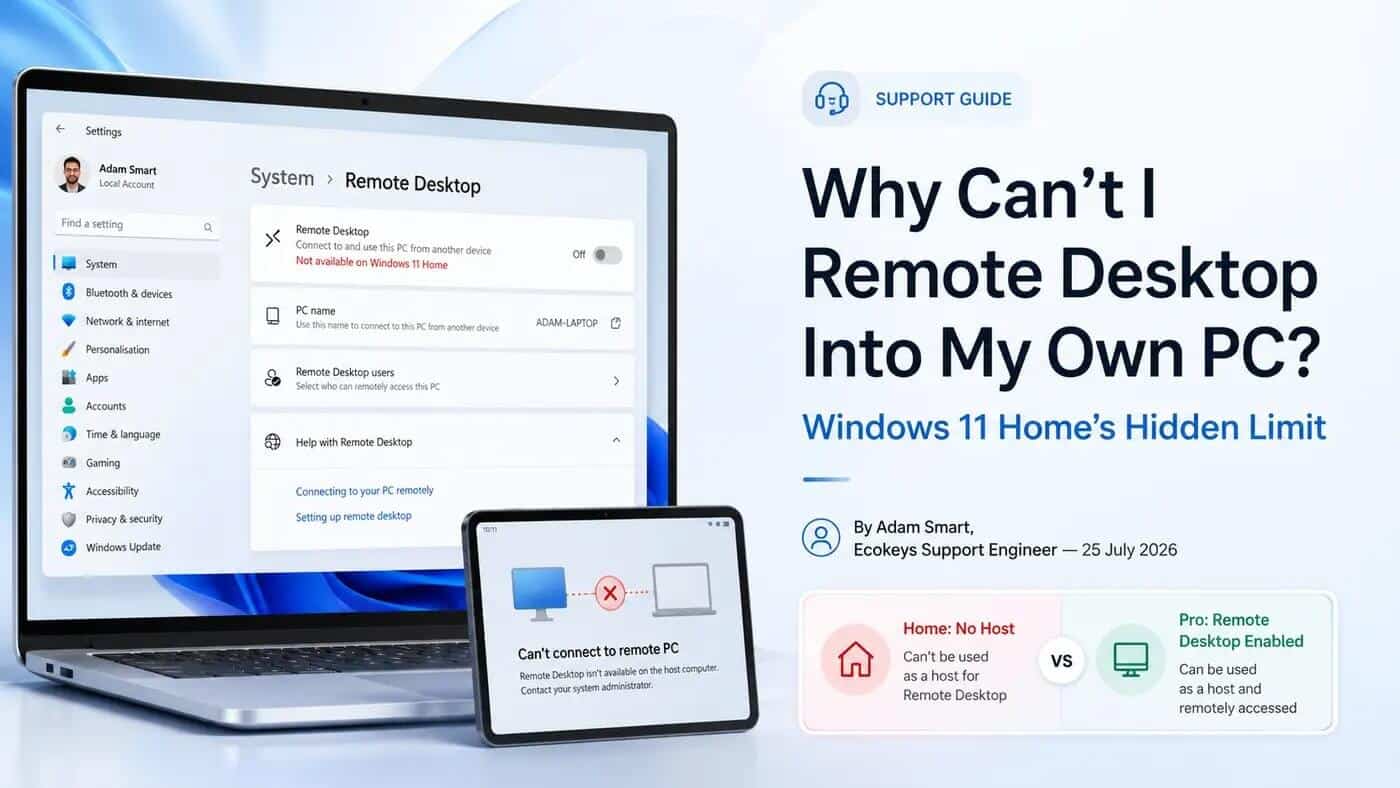
This one catches people out constantly, and it's rarely explained clearly. You set up Remote Desktop on your Windows 11 laptop, type in the PC name from your phone or another computer, and get nothing — no connection, no error that actually makes sense, just silence. You check the settings again. Remote Desktop looks like it's turned on. It isn't a bug. It's a deliberate limit built into Windows 11 Home, and no setting you toggle will fix it.
What's actually going on
Windows makes a distinction between being a Remote Desktop client and a Remote Desktop host. Every edition of Windows 11 — Home included — can act as a client, meaning you can sit at a Home PC and connect out to another computer. What Windows 11 Home cannot do, under any settings combination, is act as the host: the machine other devices connect into. That capability is switched off entirely in Home and only unlocked in Windows 11 Pro (and Enterprise).
So if you're trying to reach your home PC from work, check on a laptop while travelling, or let a family member remote in to help you with something, and that PC is running Windows 11 Home — it simply can't be done with the built-in tool. Not "can't be done easily." Can't be done at all.
The workarounds you'll find — and why we'd think twice about most of them
Search this problem and you'll find no shortage of fixes. It's worth knowing what you're actually agreeing to before you install any of them.
RDP Wrapper is the one that comes up most often. It's a small utility that patches Windows' networking service to unlock host functionality on Home. It's free and it does technically work — but it's explicitly a workaround for something Microsoft deliberately restricted, it means installing unofficial software that modifies a core system service, and running it is a breach of the Windows licence terms you agreed to. For a quick personal experiment that might be a risk you're willing to take. For anything involving client data, work files, or a business laptop, it's a genuinely bad trade for what it saves you.
Third-party remote access tools — TeamViewer, AnyDesk, Chrome Remote Desktop — are the more common recommendation, and they're perfectly legitimate software. But it's worth being clear-eyed about what you're signing up for: free tiers are usually personal-use only and will flag or block you if the usage looks commercial, the paid business tiers often run £20–£30+ a month per user, and you're routing your remote sessions through a third party's servers rather than connecting directly between your own two devices. For occasional one-off help with a relative's computer, these are genuinely great. For regularly accessing your own PC, you're paying monthly indefinitely for something a one-time Windows licence would solve outright.
The straightforward option people skip past
Windows 11 Pro includes native Remote Desktop hosting as standard — no wrapper, no subscription, no third-party server in the middle of your connection. You turn it on in Settings, and any device with the Remote Desktop app (built into Windows, and available for Mac, iOS and Android) can connect directly to your PC over your own network or the internet.
It's a one-time purchase, it's the officially supported way Microsoft intends this to work, and — unlike a monthly remote-access subscription — the cost doesn't come back around next year. If you're weighing this up purely on price against a year or two of a paid TeamViewer or AnyDesk plan, Pro typically works out cheaper within the first twelve months, and after that it's simply free.
It's also worth knowing this isn't the only thing Pro unlocks. BitLocker full-disk encryption — genuinely useful if your laptop ever gets lost or stolen — and the ability to join a work network via Microsoft Entra ID both come with the same licence, so if remote access is the reason you're looking at Pro, those come along with it.
How to set it up once you have Pro
If you've decided Pro is the right fit, enabling Remote Desktop hosting takes a couple of minutes:
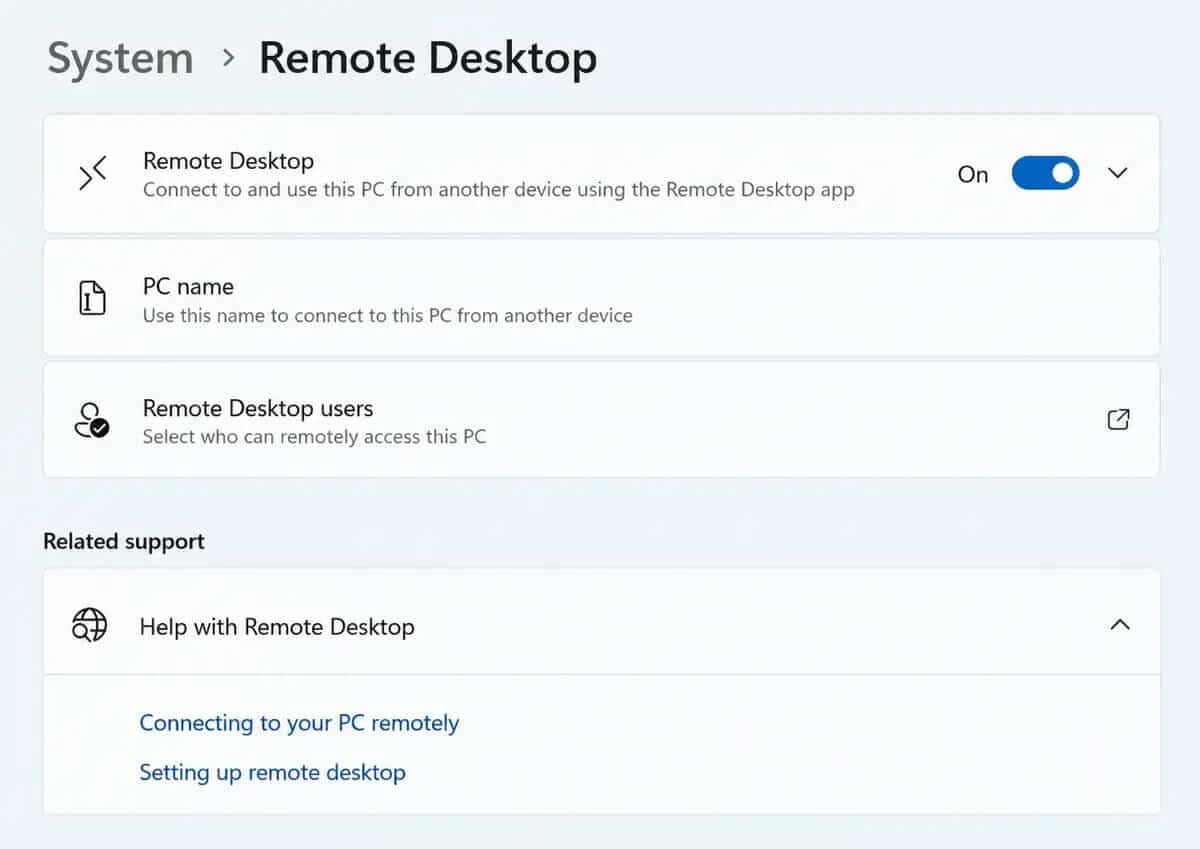
- Open Settings > System > Remote Desktop and turn the toggle on
- Note the PC name shown on that page — you'll need it to connect
- On the device you're connecting from, open the Remote Desktop app (built into Windows, or downloadable from the Microsoft Store/App Store on other platforms)
- Enter the PC name or IP address, sign in with your Windows account, and you're in
If you're connecting from outside your home network, you'll also want your router configured properly or a VPN in place — happy to point you in the right direction on that if you get in touch, it varies by router.
Quick questions
Can I upgrade my existing Windows 11 Home installation to Pro, or do I need to reinstall?
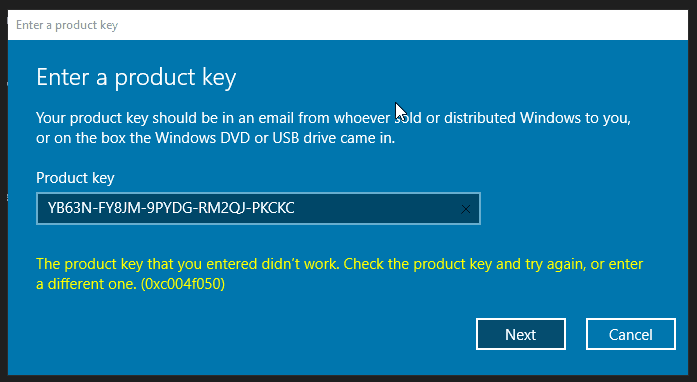
You can upgrade in place with a genuine product key — no reinstall or data loss involved. It typically takes a few minutes and a restart.
Will RDP Wrapper get my Windows licence banned?
It's unlikely to trigger an automatic ban, but it is a breach of the Windows licence terms, relies on an unofficial patch to a system service, and has no official support if it breaks after a Windows update — which does happen periodically.
Is Chrome Remote Desktop good enough for regular use?
For light personal use, yes, and it's free. For frequent access, unattended connections, or anything work-related, native RDP on Pro tends to be faster, doesn't rely on a Google account, and doesn't route your session through a third party's infrastructure.
If native, one-time Remote Desktop access sounds like the simpler route, we sell a genuine Windows 11 Professional licence key with instant digital delivery and installation instructions — no subscription, no workaround, just the feature switched on properly.