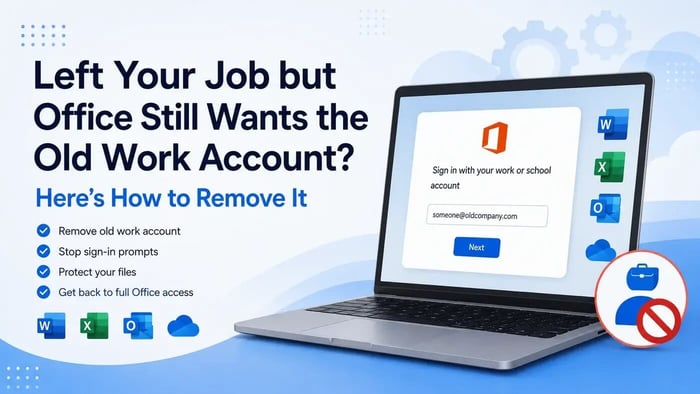
Left Your Job but Office Still Wants the Old Work Account? Here’s How to Remove It
By Adam Smart, Ecokeys Support Engineer — 30 July 2026
You’ve left the company. Handed back the laptop bag, the pass, maybe an awkward mug. Your old work email hasn’t worked in weeks. And yet Word, Excel, Outlook or OneDrive on your own personal computer still turn to you expectantly every time you open them, asking for a password to an account that, as far as you’re concerned, doesn’t exist anymore.
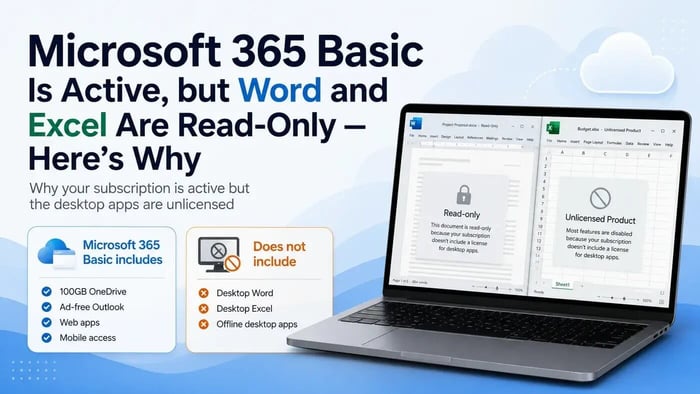
Signing out helps for exactly as long as it takes to close and reopen the app. Some people also start seeing Unlicensed Product pop up in Word, which feels like insult added to injury — you didn’t just lose the login, apparently you lost the software too.
Here’s the thing: this is rarely one problem wearing a trench coat. It’s usually two or three separate issues standing on each other’s shoulders — Windows or Office still remembering the old account, the employer’s Microsoft 365 licence having been switched off, and files still tucked away in the company’s OneDrive or SharePoint.
It is worth untangling properly rather than reinstalling Windows out of frustration, which is a genuinely common and unnecessary reaction to this problem.
The short version
If you want the order that actually works:
- Work out whether the computer is yours or the former employer’s. This matters more than anything else on this list.
- Secure any personal files you are authorised to keep before disconnecting anything.
- Sign out of the old account inside Word, Excel and Outlook.
- Disconnect it properly in Windows Settings > Accounts > Access work or school.
- Unlink the old OneDrive account too — it is a separate step.
- Restart, then check File > Account in Word.
- If it now says Unlicensed Product, that is your cue to arrange a personal Office licence.
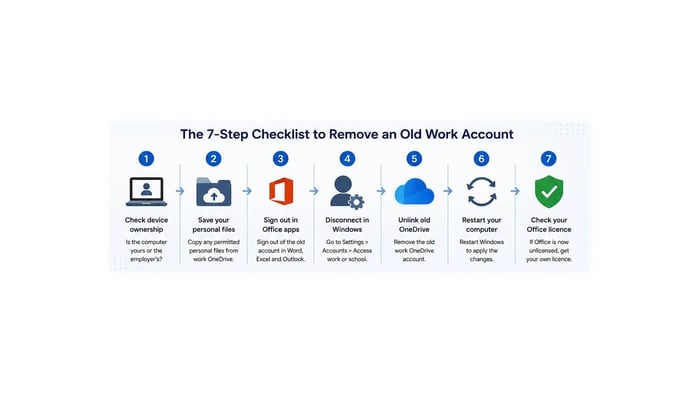
Before anything else: if this computer belongs to your former employer, or is still under their management, do not attempt any of this yourself. Contact their IT department and have the device properly returned or released. Changing company security settings on a device you do not own is a bad idea for reasons that have nothing to do with Windows.
Why does Office remember a job you do not have anymore?
A single work account has a habit of quietly wiring itself into more corners of Windows than you would expect.
It may be connected to:
- Word
- Excel
- PowerPoint
- Outlook
- Windows under Access work or school
- OneDrive
- Microsoft Teams
- Microsoft Edge
- the Microsoft Store
- an Outlook mail profile
- an organisation’s device-management system
Signing out of one does not necessarily sign you out of the rest. They are separate connections that often happened to be created at the same time, usually when the account was first added to the computer.
Microsoft’s own documentation explains that adding a work or school account to Windows can sign you into multiple apps and register the device with the organisation. That is why removing it from one place does not always clear it from everywhere else.
What actually happens to Office when you leave?
If your old employer paid for your Microsoft 365 licence, the licence was theirs rather than yours. The applications may have been installed on your personal computer, but the right to use them came from the work account.
Once the organisation removes the licence or disables the account, Word and Excel can start displaying messages such as:
- Unlicensed Product
- Activation Required
- Account Error
- We couldn’t find a Microsoft 365 subscription
- Your account does not allow editing
- Sign in to set up Office
Existing documents may still open, but editing and creating new ones can become restricted.
None of that necessarily means Office is broken. It means the licence that was activating it ended around the same time as your employment.
Worth being clear about: removing the old account and replacing the Office licence are two completely separate jobs.
Disconnecting the account can stop the repeated sign-in prompts. It does not give the computer a new personal licence for Word, Excel, PowerPoint or Outlook.
Before you disconnect anything: secure your permitted personal files
Do this first while the account is still connected.
Once an account is disabled or disconnected, retrieving files from the company’s OneDrive or SharePoint account can become much harder, and sometimes impossible without help from the former employer.
Examples of personal files you may be authorised to keep could include:
- your personal CV
- personal photographs accidentally saved to the work OneDrive
- personal tax or pension paperwork
- personal notes your employer has confirmed you may retain
Do not copy:
- customer lists
- financial records
- internal reports
- source code
- employee information
- confidential emails
- commercial documents
- intellectual property belonging to the organisation
Only copy files that you are clearly authorised to retain.
How to copy permitted personal files
If both your personal and work OneDrive accounts are still connected:
- Open File Explorer.
- Find the folder called OneDrive – Company Name.
- Find your separate OneDrive – Personal folder.
- Select only the files you are authorised to keep.
- Use Copy and Paste rather than dragging the files.
- Allow your personal OneDrive account to finish syncing.
- Sign in to OneDrive through a browser and confirm the copied files are present.
Copying rather than moving is safer because it reduces the risk of accidentally removing a file from the employer’s account.
One honest caveat: copying a file does not always preserve its sharing permissions, version history or original metadata.
If the work account has already been disabled and you cannot sign in, your safest option is to contact the former employer. Explain exactly which personal files you require and ask whether they can lawfully provide them.
Do not attempt to bypass the disabled account or the organisation’s security.
Step 1: Sign out inside Office
- Open Word or Excel.
- Go to File > Account.
- Look under User Information and Connected Services.
- If the old employer’s email address appears, select Sign out.
- Remove any old OneDrive or SharePoint connection listed beneath it.
- Close every Office application fully before moving on.
Outlook is worth checking separately because it can hold a different account configuration from Word and Excel.
Check:
- Word: File > Account
- Excel: File > Account
- PowerPoint: File > Account
- Outlook: File > Account Settings
Removing the account from Word does not guarantee that Outlook has forgotten the old mailbox.
Step 2: Disconnect the account from Windows
This is the step people most often miss because Windows has more than one account-settings page.
Go to:
Settings > Accounts > Access work or school
Do not rely only on Email & accounts. The organisational connection may appear under Access work or school instead.
- Open Windows Settings.
- Select Accounts.
- Select Access work or school.
- Find the former employer’s account.
- Expand the account.
- Select Disconnect.
- Confirm the removal.
- Restart Windows.
This removes the organisational sign-in connection from the device. It does not delete the Microsoft account itself.
If you only see “Manage” instead of “Disconnect”, or the option is missing altogether, the device may still be managed by the former employer.
Confirm that the computer is personally owned, then contact the organisation’s IT team or Microsoft Support rather than attempting registry edits or advanced account-removal commands.
Will disconnecting the account delete anything?
It should not delete your separate personal documents.
However, files that exist only in the work OneDrive cloud may become inaccessible once the account is removed or disabled.
That is why the file-checking step must happen before disconnection.
Step 3: Unlink the old OneDrive account
Signing out of Word does not sign you out of the separate OneDrive sync application.
- Select the OneDrive cloud icon in the Windows notification area.
- Select the settings or gear icon.
- Open Settings.
- Select the Account tab.
- Find the former employer’s OneDrive account.
- Select Unlink this PC.
- Confirm the action.
Files marked as available on the device normally remain in the local OneDrive folder after unlinking.
Online-only files remain in the organisation’s OneDrive and will require valid account access to open again.
Do not start deleting files from the old OneDrive folder while it is still syncing. Deleting a synced file may also delete it from the organisation’s cloud storage.
Unlink the account first, then carefully identify which local files you are authorised to keep.
Step 4: Check Outlook separately
If Word has stopped asking for the old account but Outlook still prompts for it, the old mailbox or mail profile may still be configured.
- Open Outlook.
- Select File.
- Select Account Settings.
- Select Account Settings again.
- Review the email accounts listed.
- Check whether the former work address is still present.
Before removing an Outlook account, check whether the mailbox contains any personal information you are authorised to keep.
Also be careful with locally stored Outlook data files. Removing a mail profile can change how existing mail, calendars and contacts appear, including accounts unrelated to the old employer.
If you are unsure which profile contains which data, back it up or contact technical support before deleting anything.
Step 5: Restart and check the Office licence
Once the old account has been removed from Office, Windows and OneDrive, restart the computer.
Open Word and go to:
File > Account
You will normally see one of three outcomes.
Office is activated with another personal account
If you already own Microsoft 365 Personal, Microsoft 365 Family or a standalone Office product under another Microsoft account, sign in with that account.
Confirm that the correct product appears under Product Information.
Office says Unlicensed Product
This is the expected outcome if the former employer supplied the only desktop Office licence.
The old account may now be removed correctly, but Word, Excel and Outlook still require a personal replacement licence.
Office still asks for the old work account
Do not immediately reinstall Windows.
Check whether:
- the account still appears under Access work or school
- OneDrive is still connected
- Outlook still contains the old mailbox
- Teams is still signed into the old account
- Microsoft Edge still uses the work profile
- the device is still registered with the organisation
If all the normal connections have been removed and the prompt continues, contact Microsoft Support or the former employer’s IT department.
Why reinstalling Office usually does not fix this
A reinstall can repair damaged program files, but it does not automatically remove every Windows-level account connection.
It also cannot provide a replacement licence.
If Windows, OneDrive or device management still remembers the old employer, the sign-in prompt may return after the fresh installation.
Reinstalling is most useful after:
- the old work account has been removed
- permitted personal files have been secured
- the correct replacement licence has been chosen
- old or conflicting Office installations need to be removed
Your options once the old licence is gone
Option 1: Use Word and Excel in a browser
This may suit you if your needs are fairly light and your files already live in a personal OneDrive account.
The browser versions can handle many everyday documents and spreadsheets without another Office purchase.
They may be less suitable if you need:
- desktop Outlook
- Microsoft Access
- advanced Excel features
- macros
- complex document formatting
- regular offline working
Option 2: Buy Microsoft 365 Personal or Family
This may suit you if you want the desktop applications across several devices, ongoing feature updates and a larger OneDrive allowance.
The trade-off is the continuing monthly or annual subscription cost.
Option 3: Buy a standalone Office licence for one Windows PC
If you would rather pay once and use Office on one main Windows computer, a standalone licence may be more appropriate.
Office 2024 Professional Plus includes:
- Word 2024
- Excel 2024
- PowerPoint 2024
- Outlook 2024
- Access 2024
- OneNote 2024
It is a one-time purchase for one compatible Windows PC.
It does not restore your old company mailbox, former work OneDrive access or anything else tied to the employer.
It simply gives your personal computer its own independent desktop Office licence, which is the gap left behind when the employer-supplied licence ends.
Worth saying plainly: buying Office 2024 does not remove the old work-account prompts by itself.
Complete the account-removal steps first, then choose the Office option that matches how you now work.
Can your old employer still see or control your personal computer?
Possibly, if the device was enrolled in the organisation’s management system.
This can happen when a user allows the organisation to manage the device while signing into Teams, Outlook, Edge or Microsoft 365.
A managed personal device may receive:
- security requirements
- password or PIN policies
- application restrictions
- device-compliance checks
- organisation certificates
- remote removal of company data
Disconnecting the account under Access work or school should normally remove the organisational connection from a personally owned device.
If Windows still says that settings are managed by an organisation after disconnection, contact the former employer or Microsoft Support.
Do not use undocumented commands or registry changes to bypass legitimate device management.
What about files created using the old work version of Office?
Ordinary Word documents, Excel spreadsheets and PowerPoint presentations can normally be opened in another current Office edition.
The file format is not usually the issue.
The important question is whether you are legally and contractually entitled to keep and use the file.
Your own personal documents may be retained where permitted. Customer information, confidential reports, internal data and other company material may still belong to the employer even when a copy exists on your personal computer.
When genuinely unsure, ask the former employer directly.
Quick questions
Why does Word keep asking for my old work password?
The account may still be listed under Connected Services in Office, connected under Windows Access work or school, or present in both places.
Why does Office say Unlicensed Product after I have left my job?
The desktop licence was probably supplied by the employer. Once the organisation removes it, the installed applications can lose activation even though the software remains on the computer.
Will removing the old account delete my documents?
It should not delete your separate personal files. Anything stored only in the company’s OneDrive or SharePoint account may become inaccessible after the account is removed.
Where exactly is the Disconnect button in Windows 11?
Go to Settings > Accounts > Access work or school, expand the old account and select Disconnect.
Can I keep the old work Microsoft 365 account after I leave?
No. The organisation controls the account, licence, email and associated services.
Does buying Office 2024 restore my old work email?
No. Office 2024 includes the Outlook desktop application, but it cannot reactivate a disabled company mailbox or restore access to the former employer’s mail server.
The account, licence and files are three separate problems
If Office keeps asking for an old work account after you have left a job, remove the connections in the correct order: protect authorised personal files, sign out inside Office, disconnect the account from Windows and unlink OneDrive.
After that, check File > Account in Word or Excel.
If Office now shows Unlicensed Product, the former employer was probably supplying the desktop licence. You can then use the browser applications, choose a personal Microsoft 365 subscription or install a standalone Office edition on a compatible Windows PC.
Removing the old account stops your computer relying on a company you no longer work for. Obtaining your own Office licence gives you independent access to the desktop applications going forward.