What Software Do You Need for a New PC? Windows 11 & Office Checklist
By Adam Smart, EcoKeys Support Engineer — 25 August 2026
You can spend days comparing processors, graphics cards, memory and SSDs, only to reach the software stage and wonder: what software do I need for a new PC, and which parts do I actually have to pay for?
Quite often, the answer is less than you think.
Before buying anything, check what is already licensed. A new computer does not automatically need a new Windows licence, a copy of Microsoft Office and a separate antivirus subscription.
The 30-second answer
For most new PCs, work through these questions first:
- Is Windows 11 already installed and activated?
- Do you actually need Microsoft Office, or would free web-based tools cover what you do?
- If you need Office, would a subscription or a one-time purchase suit you better?
- Are there any specialist applications you need for work, study, gaming or creative projects?
- Do you already own a licence that may be valid for the new computer?
Windows and Microsoft Office are separate products. Windows runs the computer; Office provides applications such as Word, Excel, PowerPoint and Outlook.
Windows 11 also includes built-in antivirus protection, so you do not automatically need to pay for another security package.
First, check what the PC already has
The first step depends on where the computer came from.
New laptop or pre-built PC
Many laptops and pre-built desktop PCs are sold with Windows already installed and activated. If Windows is included in the specification, its licence forms part of the computer you have bought.
That is not universal. Some computers are deliberately sold without an operating system, particularly specialist machines or systems intended for customers who plan to install their own software.
Do not rely on a product photograph showing the Windows desktop. Check the specification or, if the machine is already running, open:
Settings → System → Activation
Windows will show which edition is installed and whether it is activated.
Completely new self-built PC
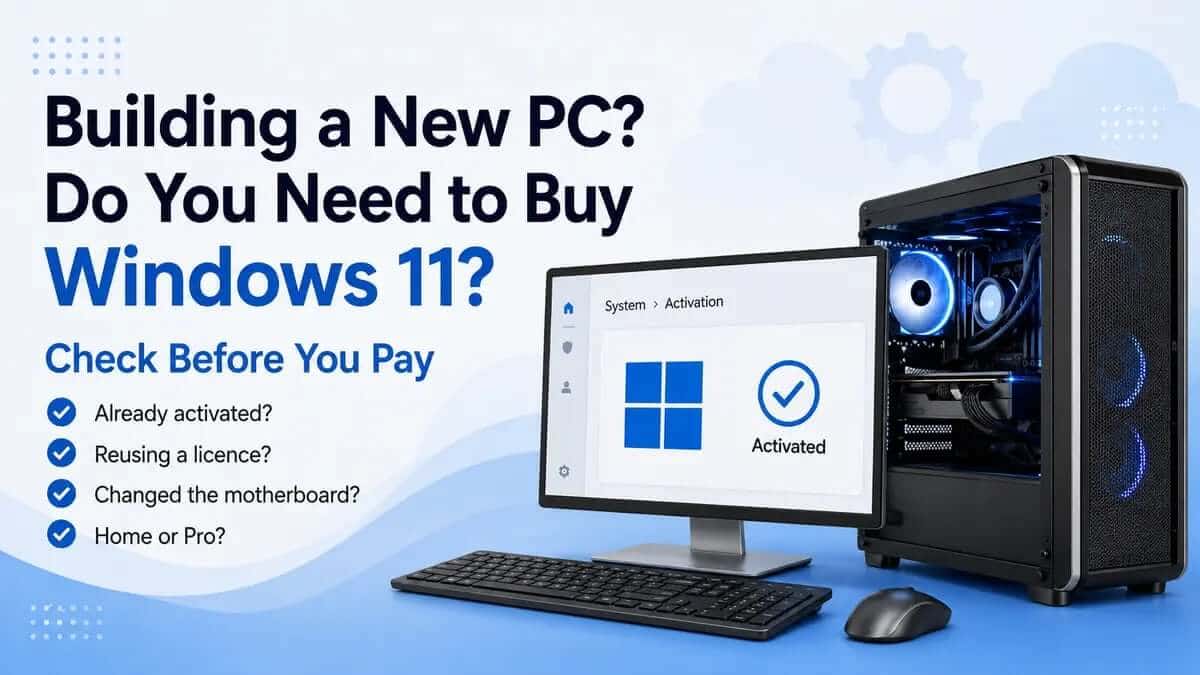
If you have assembled a PC from new components, it does not acquire a Windows licence simply because Windows has been installed on it.
You can create Windows installation media and install the operating system, but installation and activation are separate things. A genuinely new self-build without an eligible existing licence will normally need its own Windows licence.
For a fuller explanation, read Building a New PC? Do You Need to Buy Windows 11?.
Replacement or reinstalled PC
Reinstalling Windows does not automatically mean buying it again.
A computer that was previously activated may already have a digital licence for the installed edition of Windows. Reinstalling the correct edition on the same machine can often result in Windows activating again once the computer is online.
Major hardware changes can complicate activation, and not every licence is transferable to another computer. Check the Activation page and the terms of the licence you already have before purchasing another one.
Do you need Windows 11?
Windows is the operating system. It manages the hardware and provides the desktop on which your other programs run.
You will normally need a Windows licence if you have built a completely new PC, installed Windows and do not have an eligible existing licence for that machine.
You may not need to buy Windows if:
- Your laptop or pre-built PC was supplied with activated Windows.
- You are reinstalling Windows on the same previously activated computer.
- Your organisation provides the Windows licence.
- You already have a licence that is eligible for use on the new machine.
Licence eligibility depends on the product, how it was originally supplied and its terms. An old Windows licence should not automatically be assumed to be transferable.
The hardware also needs to support Windows 11. Microsoft's minimum requirements include a compatible 64-bit processor with two or more cores, 4 GB of RAM, 64 GB of storage, UEFI firmware with Secure Boot capability and TPM 2.0.
Those are minimum requirements, not necessarily a recipe for a particularly lively computer.
If you are uncertain about the hardware, use our guide to checking whether your PC can run Windows 11 before purchasing a licence.
Windows 11 Home or Pro?
Windows 11 Home is enough for many ordinary home users. It handles web browsing, personal documents, streaming, gaming and the usual collection of printers that behave perfectly until somebody urgently needs to print a boarding pass.
Windows 11 Pro adds business and advanced features including BitLocker Drive Encryption, Remote Desktop hosting and additional business-management capabilities.
Those features can be valuable in a business or technical environment, but they are not requirements for every PC. If you cannot identify a particular Pro feature you need, do not buy Pro merely because it sounds like the higher specification.
Our Windows 11 Home vs Professional comparison covers the differences in more detail.
Do you need Microsoft Office as well?
Windows 11 does not include a permanent Microsoft Office licence.
Windows runs the computer. Microsoft Office provides productivity applications such as Word, Excel, PowerPoint and Outlook. They are separate products with separate licences.
This causes plenty of confusion because a new PC may already show Word or Excel in the Start menu. What you are seeing might be:
- A shortcut to a web-based version.
- Pre-installed Office applications waiting to be activated.
- Part of a Microsoft 365 trial.
- Office already licensed through an existing Microsoft account, employer or educational institution.
Seeing an Office icon does not prove that the computer includes a permanent Office licence.
Before buying anything, check what is actually activated and whether you already have access to Microsoft 365 through work, university or a family subscription.
For more detail, read Does a New Windows 11 Laptop Come with Microsoft Office? (2026 UK Guide).
Microsoft Office 2024 or Microsoft 365?
Both provide familiar Microsoft Office applications, but the purchasing models are different.
Microsoft 365 is subscription-based. Depending on the plan, it can include installed applications, ongoing feature updates, cloud storage and use across multiple devices. Some plans can also be shared with other people.
Office 2024 is the current one-time-purchase Office generation. It suits customers who want the installed desktop applications without maintaining a recurring Microsoft 365 subscription.
A one-time purchase does not include an automatic upgrade to the next major Office release.
Neither approach is universally better. Microsoft 365 can make sense if you value its cloud services, ongoing feature updates or use across several devices. Office 2024 can make more sense if you mainly want the desktop applications on a particular PC without an ongoing subscription.
The useful question is not which name sounds better. It is how many people and devices need Office, which applications you actually use and whether the subscription services are valuable to you.
Office 2024 Professional Plus or Standard?
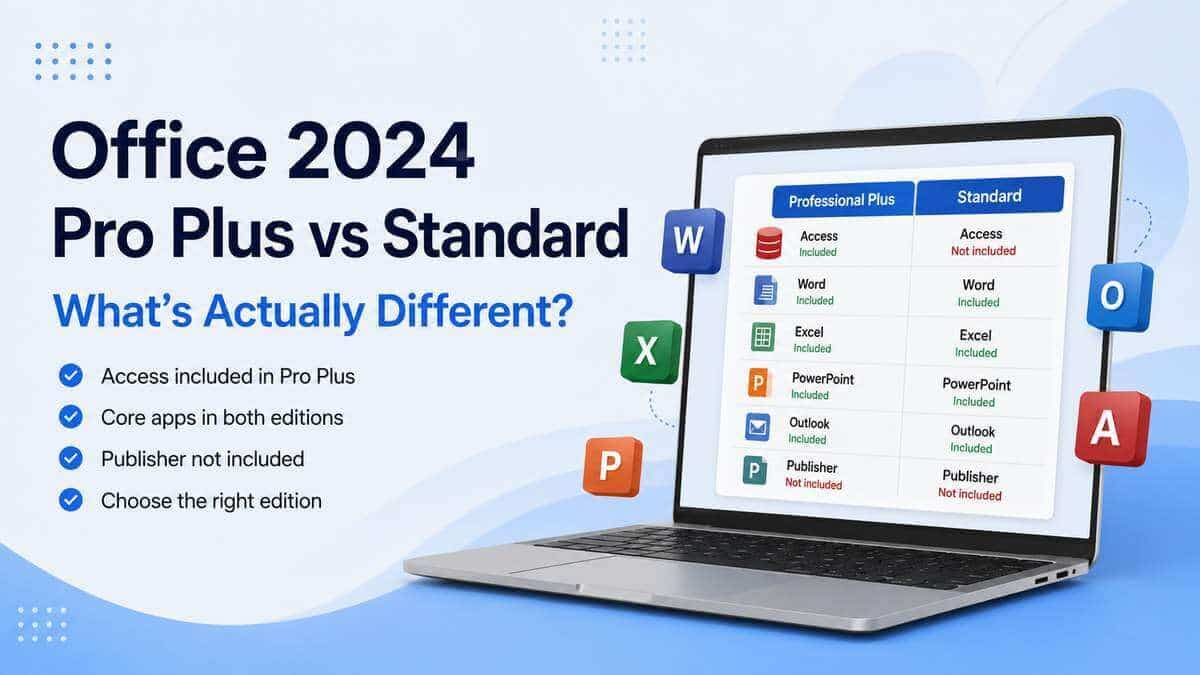
For the Windows editions available from EcoKeys, the practical difference for many customers is Microsoft Access.
Office 2024 Professional Plus includes Access alongside the core Office applications. Office 2024 Standard is intended for customers who need the main desktop Office applications without Access.
Do not choose Professional Plus simply because “Plus” sounds reassuringly larger. If nobody using the computer knows why they need Access, it is worth checking whether Standard already covers the requirement.
Our Office 2024 Professional Plus vs Standard guide covers the application differences in more detail.
Do you need Windows and Microsoft Office together?
Some people need only one of them.
A laptop may already have activated Windows but still need Office. A self-built PC may need Windows while its owner already has a suitable Microsoft 365 subscription. Another computer may already have both covered.
If you are setting up a completely new PC and have confirmed that you need both a Windows licence and desktop Microsoft Office, purchasing them in the same order can be convenient.
EcoKeys has options including Windows 11 Pro with Office 2024 Professional Plus and Windows with Office 2024 Standard. You can compare Windows 11 with Microsoft Office options once you know which Windows edition and Office applications you actually require.
The important part is doing the checking first. Buying both products together is useful when both are needed, but an unnecessary second licence remains unnecessary however tidy the order confirmation looks.
What about antivirus?
Windows 11 includes Microsoft Defender Antivirus as part of Windows Security. It provides built-in real-time protection against viruses, malware and other threats, alongside Windows Firewall and other security features.
For many home users, Windows Security provides a sensible starting point without another antivirus subscription. Keeping Windows and your browser updated and using sensible account security are equally important.
Some people choose third-party security software because they want particular features, centralised management, parental controls or simply prefer another product. That is a choice rather than an automatic requirement for every new PC.
Windows also manages Microsoft Defender when another recognised antivirus product is installed and active, so there is little benefit in trying to make two real-time antivirus products fight over the same computer.
Other software you may actually need
Once Windows and Office are settled, install software in response to an actual need rather than working through somebody else's list of “essential apps”.
Web browser
Windows includes Microsoft Edge. Install another browser if you prefer one or need it for account syncing, extensions or website testing.
PDF tools
Modern browsers can open and print ordinary PDF files. A separate PDF reader or editor becomes useful if you need features such as advanced annotation, document conversion, form handling or editing.
Cloud storage and backup
OneDrive is integrated with Windows, and other cloud-storage services are available. Synchronisation can be useful, but it is not automatically a complete backup strategy.
Think about what would happen to your documents, photographs and recovery information if the SSD failed or the laptop disappeared.
Video conferencing
Install Teams, Zoom or another conferencing application if your workplace, school or family uses it. Many meetings can also be joined through a browser.
Password manager
A password manager can help you create and store unique passwords. Your browser or an existing service may already provide one, so check before paying for something else.
Specialist applications
Creative software, accounting packages, development tools and games depend entirely on what the computer will be used for. Install what you need and check its hardware and licence requirements separately.
Hardware drivers
Windows Update supplies many drivers automatically. Graphics cards, specialist audio hardware, printers and other devices may still need software from their manufacturer.
Use the computer or component manufacturer's official support page where possible. Random “driver updater” utilities are rarely the welcoming committee a new PC deserves.
Many everyday tools are free or already included with Windows. There is no prize for filling a fresh SSD before you have opened your first document.
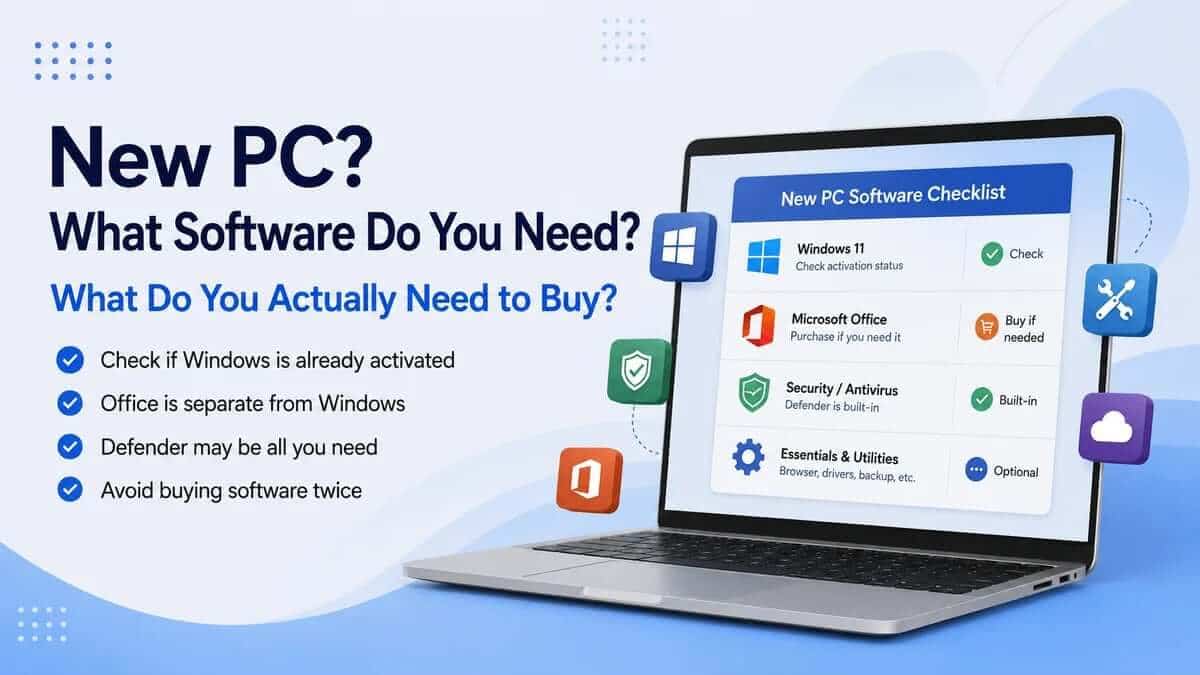
New PC software checklist
Before spending money, check the following:
- Is Windows already activated under Settings → System → Activation?
- Which Windows edition is installed?
- Does the hardware support Windows 11?
- Do you already own an eligible Windows or Office licence?
- Do you actually need Windows 11 Pro?
- Do you need installed Microsoft Office applications?
- Which Office applications do you use?
- Would Office 2024 or Microsoft 365 suit you better?
- Do you need both Windows and Office for this PC?
- Have you backed up important files and recorded the accounts you will need before migrating?
- Have Windows Update and any necessary manufacturer drivers been installed?
- Are you paying twice for antivirus, cloud storage or another service you already receive?
The resulting decision should be fairly straightforward:
- Already have Windows? Buy only Office if you need it.
- Already have Office? Buy only Windows if you need it.
- Need both? Choose the Windows and Microsoft Office combination that matches the PC and the applications you need.
- Already have both? Do not buy either again unnecessarily.
Frequently asked questions
Do I need to buy Windows 11 for a new PC?
Not always. A laptop or pre-built PC may already include activated Windows. A completely new self-built PC will normally need a licence unless you already have an eligible licence for it. Check Settings → System → Activation before buying.
Does Windows 11 include Microsoft Office?
No. Windows 11 and Microsoft Office are separate products. A computer may have Office applications, shortcuts or a trial pre-installed, but that does not automatically provide a permanent Office licence.
Do I need Microsoft Office on a new PC?
Only if you need its applications or compatibility with Office-based work. Free browser-based tools may be enough for occasional personal use. If you regularly need installed versions of Word, Excel, PowerPoint, Outlook or another Office application, an appropriate Office or Microsoft 365 licence may be worthwhile.
Do I need antivirus for Windows 11?
Windows 11 already includes Microsoft Defender Antivirus through Windows Security, so another paid antivirus product is not an automatic requirement. Additional security software should be chosen because you need particular features rather than simply because the computer is new.
Can I use my old Windows or Office licence on my new PC?
Possibly, but not every licence can be transferred. Eligibility depends on the product, licence type, how it was originally supplied, the number of permitted devices and the applicable licence terms. Check your purchase records, Microsoft account and existing activation before moving software or buying a replacement.