Building a New PC? Do You Need to Buy Windows 11?
By Adam Smart, Ecokeys Support Engineer — Last updated 25 August 2026
The graphics card is the fun purchase. Windows licensing is not — nobody's ever shown a friend their Windows key with pride. But before it lands on your shopping list anyway, it's worth thirty seconds to check whether you actually need it.
A new laptop or pre-built PC often already includes activated Windows. A reinstall on a machine that was already licensed can often reactivate without you buying anything again. And in some cases, an existing stand-alone Windows licence may be eligible to move to another device.
A genuinely new self-build with no Windows history behind it is a different story — that one will normally need a valid licence. The short version: check the computer, and check what you already own, before you check out.
The 30-second answer
You don't automatically need to buy Windows 11 every time you get, build or repair a computer.
A laptop or branded desktop sold with Windows should already include activation. Reinstalling the same edition on a PC that was already licensed will often activate itself again once it's online. Replacing an SSD usually doesn't mean buying Windows again either.
A completely fresh self-build is where the answer changes: if it has never had a valid Windows licence and you don't already own an eligible stand-alone licence that can be moved across, you'll normally need to buy one.
A motherboard replacement sits somewhere in the middle. Microsoft treats it as a significant hardware change, which can affect activation — but that is a reason to try reactivation first, not automatically a reason to buy another licence.
Do you actually need to buy Windows 11?
There are deliberately a few “maybe” answers in that table. Windows activation is tied to both the licence you own and the hardware it is being used on, so the right answer depends on how Windows was originally obtained.
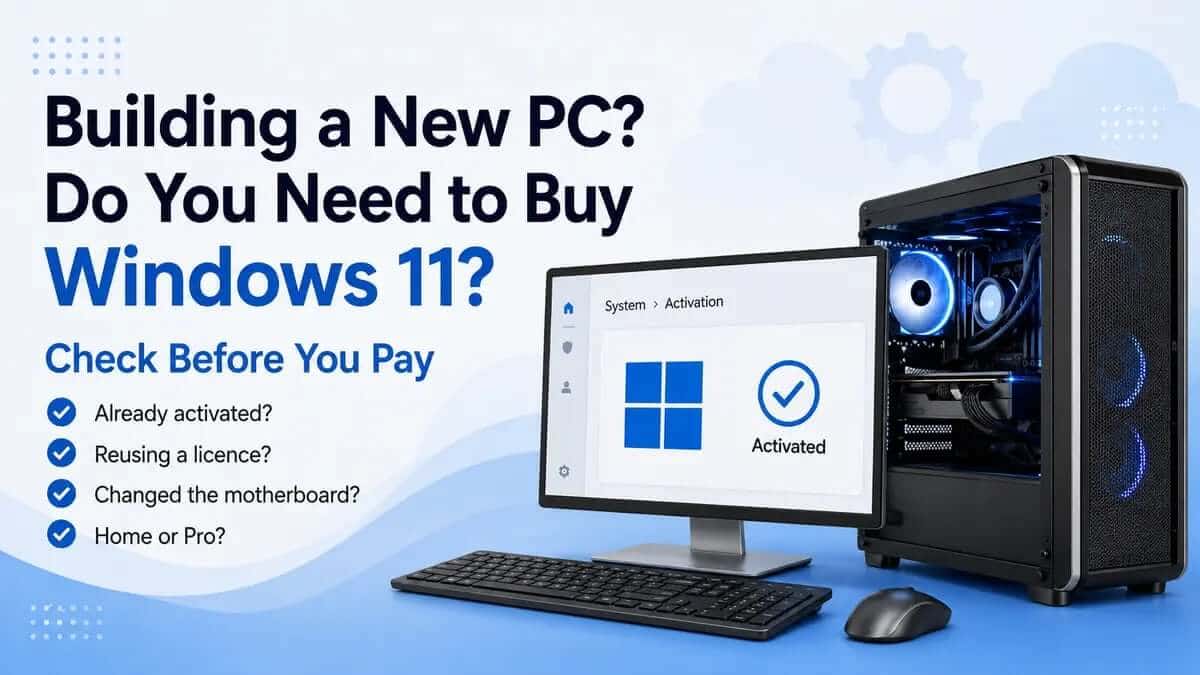
First: is Windows already activated?
If the computer is running, this is the first place to look:
Settings > System > Activation
You'll see the installed edition — normally Windows 11 Home or Pro — along with its activation status.
You may see wording such as:
- Windows is activated
- Windows is activated with a digital licence
- Windows is activated with a digital licence linked to your Microsoft account
- Windows is not activated
If it already shows the correct edition and says Windows is activated, that's the job done. Don't buy another licence.
Make a note of the edition and the activation wording in case you ever need it later.
What is a digital licence?
A digital licence simply means Windows already has an activation record for that device. You don't necessarily need to type in a 25-character product key every time you reinstall Windows.
If a PC already has a digital licence for Windows 11 Home, reinstalling Windows 11 Home on that same machine will commonly activate again once the PC is online.
The edition matters, though. A Windows 11 Home licence activates Home, while Windows 11 Pro requires a Pro licence. If you're reinstalling Windows, make sure you install the edition your existing licence actually covers.
Linking a digital licence to your Microsoft account can also be useful if you later make a significant hardware change, because Microsoft's Activation troubleshooter can use that account during the reactivation process.
It doesn't, however, turn every Windows licence into one that can freely move between computers.
Does a new laptop or pre-built PC already come with Windows?
Often, yes.
Check the product description before buying the computer. It should tell you whether it comes with Windows 11 Home, Windows 11 Pro or no operating system at all.
Once it arrives:
- Complete the initial Windows setup.
- Open Settings > System > Activation.
- Check that the advertised edition is installed.
- Confirm that Windows says it is activated.
Don't buy another licence simply because you can't find a product-key sticker on the computer. Modern Windows activation is often handled digitally, so there may be no key you ever need to type yourself.
What about a refurbished PC?
Don't assume every refurbished computer includes Windows.
Check the listing for:
- whether Windows is included;
- which edition is supplied;
- whether it should arrive activated;
- any licence or activation information provided by the seller.
If Windows was advertised as included, the seller should supply the computer with the advertised edition properly licensed and activated.
Once it arrives, check Settings > System > Activation.
If it's already correctly activated, you're done. If it isn't, contact the seller first rather than immediately buying another licence to solve a problem they may be responsible for fixing.
Does a self-built PC need its own Windows licence?
If it's a genuinely new build that has never had activated Windows attached to it, then yes, normally.
Before buying anything, though, check a few things:
- Are you reusing a motherboard from a previously activated PC?
- Do you already own a stand-alone Windows licence that may be eligible to move?
- Was Windows included with any bundle or complete system you purchased?
- Do you need Windows 11 Home or Pro?
- Does the hardware actually meet Windows 11's requirements?
Windows 11 currently requires compatible 64-bit hardware, at least 4GB of RAM, 64GB of storage, UEFI firmware with Secure Boot capability and TPM 2.0, along with Microsoft's supported processor requirements.
It's worth checking whether your PC can run Windows 11 before buying a licence. No product key can make incompatible hardware meet Microsoft's requirements.
Reinstalling Windows on the same computer
Reinstalling Windows does not automatically mean buying Windows again.
If a device already has a digital licence, you can normally reinstall the same Windows edition and allow it to reactivate online.
During setup, you can often choose I don't have a product key, install the edition that was previously activated, connect to the internet and let Windows check its existing digital licence.
Before reinstalling:
- check that Windows is currently activated;
- note whether you have Home or Pro;
- link the digital licence to your Microsoft account if appropriate;
- back up your files.
Installing the wrong edition is one of the easiest mistakes to make. A Windows 11 Home licence won't activate Windows 11 Pro, so always reinstall the edition your licence actually covers.
Do I need a new licence after replacing an SSD?
Usually not.
On a PC that was already activated, replacing an SSD and reinstalling the same Windows edition will commonly allow Windows to reactivate using the device's existing digital licence once it is back online.
If activation doesn't happen automatically, use the Activation troubleshooter and check your existing licence before purchasing anything new.
What if you've changed the motherboard?
This is the one worth planning for.
Microsoft treats a motherboard replacement as a significant hardware change. That can cause Windows to stop recognising the computer as the device that was previously activated.
Before changing the motherboard:
- confirm Windows is currently activated;
- check whether the digital licence is linked to your Microsoft account;
- keep your original product key and purchase information if you have them.
After changing the motherboard:
If Windows is no longer activated, go to Settings > System > Activation and run the Activation troubleshooter.
Microsoft provides an I changed hardware on this device recently option for eligible licences. You'll normally sign in with the Microsoft account previously linked to the digital licence and select the relevant device.
Whether Windows can legally and successfully reactivate also depends on the licence itself.
A Windows licence that came preinstalled with another computer is licensed with that original device and shouldn't be treated as a stand-alone licence you can simply move to a different PC.
A stand-alone Windows licence is different. Microsoft's licence terms allow eligible stand-alone software to be transferred to another device you own, provided it is removed from the previous device and the licence terms are followed.
If the Activation troubleshooter doesn't resolve the issue and you believe your existing licence is eligible, contact Microsoft before buying another one.
We've also got a Windows 11 activation guide if you need the activation process in more detail.
Can I move Windows from my old PC to a new one?
Sometimes.
The important question is how the Windows licence was originally obtained.
If Windows came preinstalled with a laptop or branded desktop, that licence is supplied with the licensed device and should not be treated as a stand-alone licence that can simply move to another computer.
If you bought Windows separately as stand-alone software, Microsoft's current licence terms allow an eligible stand-alone licence to be transferred to another device you own, provided you remove it from the previous device and follow the licence terms.
Before relying on an existing licence, check:
- Did Windows come with the old computer or was it bought separately?
- Is the licence Home or Pro?
- Will Windows be removed from the old device?
- Do you still have the original key or purchase information?
If you're still unsure what type of licence you have, check with the original retailer or Microsoft before buying anything new.
Windows 11 Home or Pro?
Only decide this once you've established that you genuinely need a new licence.
Windows 11 Home is enough for most personal computers, including:
- web browsing;
- streaming;
- gaming;
- school or university work;
- normal home working;
- everyday Windows applications.
Windows 11 Pro becomes useful when you specifically need features such as:
- hosting incoming Remote Desktop connections;
- Hyper-V virtual machines;
- Group Policy;
- joining a domain or Microsoft Entra ID;
- additional business-management features;
- the fuller BitLocker Drive Encryption management tools.
On encryption, there is one important distinction: compatible Windows 11 Home devices can support Device Encryption, so saying that Home has “no encryption” would be misleading. Pro provides the broader BitLocker management feature set.
For most home and gaming PCs, Home is genuinely enough. Choose Pro when you can name the specific feature you need it for — not because it sounds like the “proper” version.
For a more detailed comparison, see our Windows 11 Home versus Pro guide.
If you've actually confirmed you need a licence
Once you've worked through the checks above and reached the conclusion that the computer genuinely needs a Windows licence, the next step is simply choosing the correct edition.
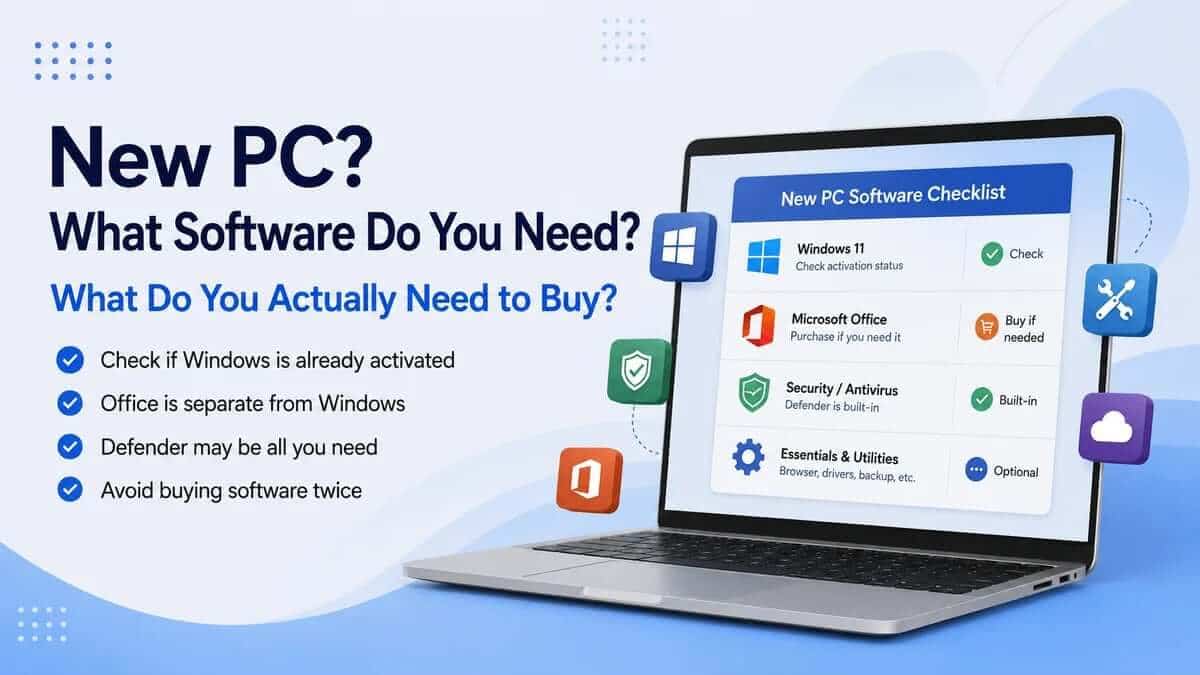
If you're setting up a completely new PC, Windows may not be the only software decision. You may also need Microsoft Office for Word, Excel, PowerPoint or Outlook. Our new PC software checklist explains what to check before buying anything, including Windows, Office, antivirus and other common software.
If you've confirmed that the computer needs both Windows and desktop Microsoft Office, you can also compare Windows 11 with Microsoft Office options for the same PC.
Windows 11 Home
If the PC is mainly for everyday home use, gaming, studying, browsing and normal applications, EcoKeys Windows 11 Home retail licence covers one compatible 64-bit PC and is the sensible choice if you don't need the additional Pro features.
Windows 11 Pro
If you specifically need features such as Remote Desktop hosting, Hyper-V, Group Policy or the wider business-management toolset, EcoKeys Windows 11 Pro retail licence covers one compatible 64-bit PC.
It can also be used to upgrade an already-activated Windows 11 Home installation to Pro without performing a full Windows reinstall.
Don't buy Pro purely because it sounds like the better edition. For ordinary home and gaming use, Windows 11 Home genuinely covers what most people need.
Five things to check before buying anything
- Is Windows already activated?
Check Settings > System > Activation first. - Which edition is installed?
Make sure you know whether the computer needs Home or Pro. - Is this genuinely a new PC?
A reinstall or SSD replacement is very different from building a completely new machine. - Do you already own an eligible Windows licence?
Check how it was originally obtained before buying another one. - Do you actually need Pro?
Home is enough for most people. Choose Pro when you need a specific Pro feature.
If Settings already confirms that the correct edition is activated, that's the end of the checklist. A PC being new to you, or freshly reinstalled, isn't itself a reason to buy another licence.
If Windows isn't activated, check the edition, connect the computer to the internet, sign into the appropriate Microsoft account, run the Activation troubleshooter, find any existing product key or purchase record, and contact the seller if Windows was supposed to be included.
Only once those possibilities have been ruled out does buying a new licence make sense.
Once you've chosen the correct edition, our step-by-step guide to installing Windows 11 from a USB drive covers the installation itself.
Quick questions
Do I need to buy Windows 11 when building a PC?
A completely new self-built PC with no existing Windows entitlement will normally need a valid Windows licence. Before buying one, check whether you already own an eligible stand-alone licence that can be reused.
Does a new motherboard mean I need another Windows key?
Not automatically. Microsoft treats a motherboard replacement as a significant hardware change, so Windows may need to be reactivated. Try Microsoft's hardware-change reactivation process and check your existing licence before buying anything new.
Do I need a new Windows licence after changing my SSD?
Usually not. If it's the same PC and it was already activated, reinstalling the same Windows edition will commonly allow it to reactivate using its existing digital licence.
Can I reuse my old Windows licence on a new PC?
It depends on how the licence was obtained. An eligible stand-alone Windows licence may be transferable to another device you own under Microsoft's licence terms. Windows supplied preinstalled with another computer is licensed with that original device and should not be treated as a stand-alone transferable licence.
Does a new laptop already come with Windows?
Many do, but not all. Check the product listing before purchase and confirm the edition and activation status in Settings once the computer arrives.
How do I tell if my computer already has a Windows licence?
Open Settings > System > Activation. Windows will show the installed edition and whether the device is currently activated.
Can a Windows 11 Home licence activate Pro?
No. The edition must match the licence. Windows 11 Home requires a Home licence, while Windows 11 Pro requires a valid Pro licence.
Is Windows 11 Home enough for gaming?
Yes, for the vast majority of gamers. Home and Pro share the same core Windows gaming experience. Choose Pro only if you also need one of its additional business, virtualisation or management features.